How to Use the Google Sheet 'IF-THEN' Formula
Explore what the IF-THEN formula is, how to use this function, and how to troubleshoot common errors.
![[Featured Image] A person sitting at a desk is working on google sheets using the IF-THEN formula to streamline their tasks.](https://d3njjcbhbojbot.cloudfront.net/api/utilities/v1/imageproxy/https://images.ctfassets.net/wp1lcwdav1p1/6A59aX48SzotW9aBoPDjOL/f9d5a16426baf0e7ed295b99ccbf5080/GettyImages-115618762.webp?w=1500&h=680&q=60&fit=fill&f=faces&fm=jpg&fl=progressive&auto=format%2Ccompress&dpr=1&w=1000)
Key takeaways
The Google Sheets IF-THEN formula gives you the ability to perform conditional calculations on data.
If you encounter errors when using the IF-THEN formula, check your syntax for errors such as misplaced commas and parentheses.
After mastering the IF-THEN formula, you can learn to nest IF-THEN commands for more complex functions.
You can use the IF-THEN formula to gather useful insights from your data in relation to the criteria you select.
Discover how the Google Sheets IF-THEN formula can help you get more out of your data. If you’re ready to start developing your data analytics skills, consider earning a Google Data Analytics Professional Certificate, where you will have the opportunity to develop in-demand skills in areas such as data cleaning, visualization, analysis, and artificial intelligence.
Best Google Sheets IF courses for beginners
Top-rated beginner-friendly Google Sheets IF courses with no prerequisites.
- Google SheetsGoogle CloudBeginner1 - 3 MonthsCourse
- Doing more with Google SheetsGoogle CloudBeginner1 - 3 MonthsCourse
- Gemini in Google SheetsGoogle CloudBeginner1 - 4 WeeksCourse
What is the IF-THEN formula in Google Sheets used for?
The IF-THEN formula in Google Sheets allows you to perform conditional calculations based on specific criteria in your data. This function can help automate decision-making and perform different actions with your information. For example, you might use the IF-THEN formula when you need to automate calculations in your spreadsheet, such as assigning grades based on scores, calculating bonuses based on performance, or determining eligibility based on specific criteria.
How do you write an IF-THEN formula in Google Sheets?
Generally speaking, you will follow these steps when using the IF-THEN function:
Open your Google Sheets with your data.
Select the cell where you want your formula results to appear
Type your formula: =IF(logical_expression, value_if_true, value_if_false)
Adjust and apply your formula to additional cells as desired
Now, let's break down these steps further and dive into how to use this formula in your Google Sheets operations.
1. Open Google Sheets.
Open the Google Sheet you want to work on in your web browser. Ensure your data is well-organized in columns and rows, with headers in the first row. This can help you reference the data accurately in your formula.
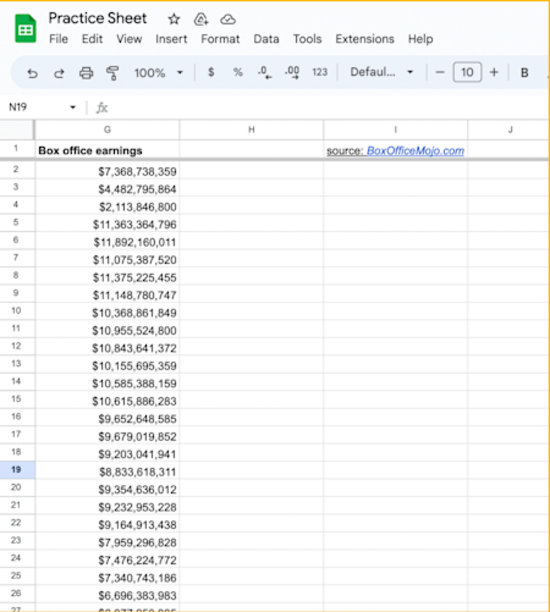
2. Select the cell for the formula.
Choose the cell where you want the result of your IF-THEN formula to appear.
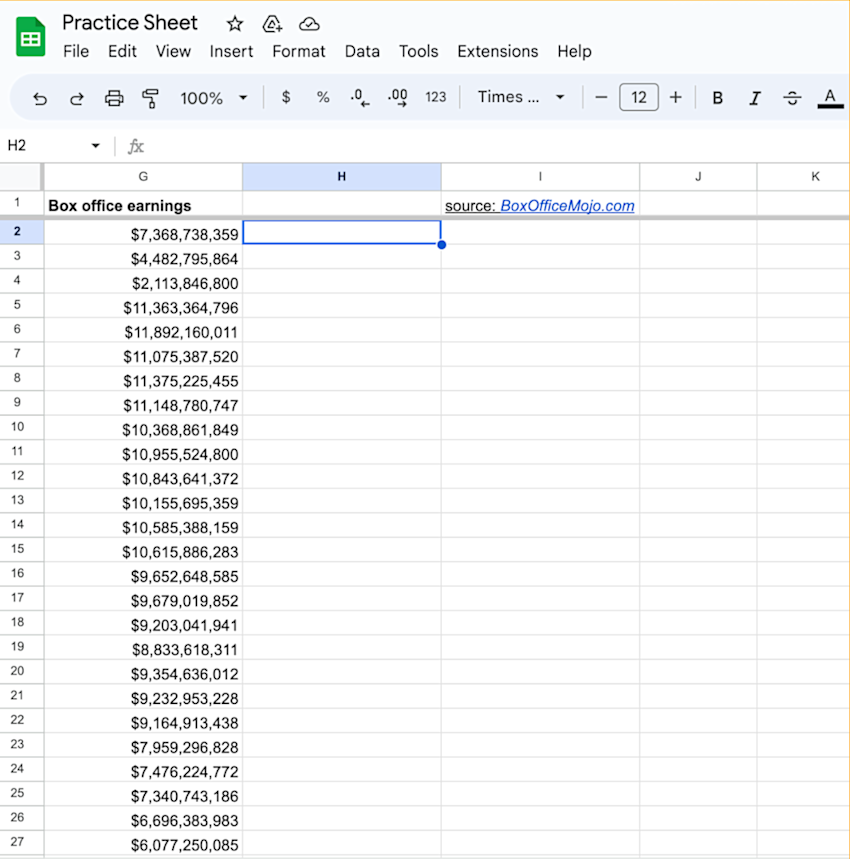
3. Start the formula with an equals sign.
Begin the formula by typing an equals sign in the selected cell. This indicates to Google Sheets that you are entering a formula.
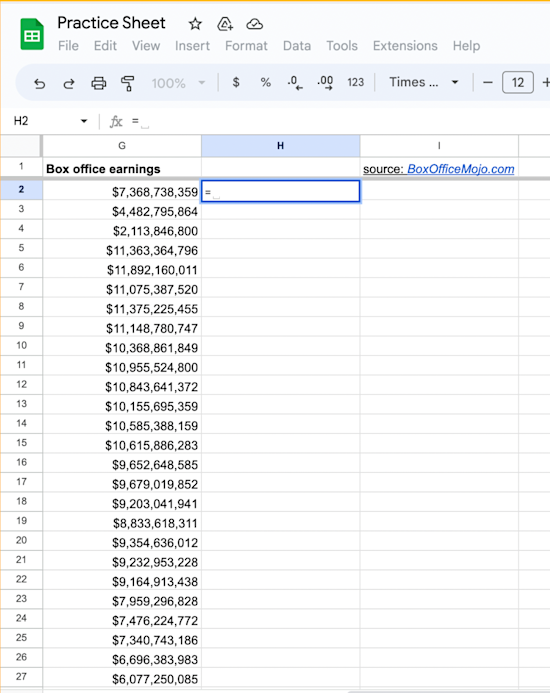
4. Enter the 'IF' function.
After the equals sign, type IF( to start the IF function. The opening parenthesis indicates that you are entering the arguments for the function.
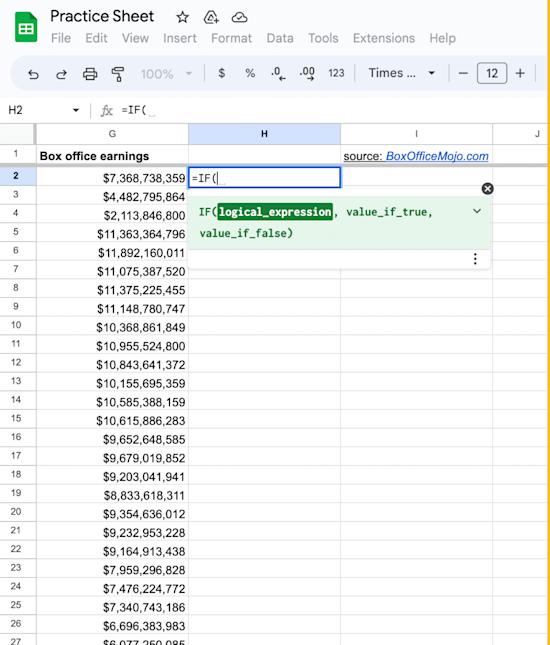
5. Enter the logical expression.
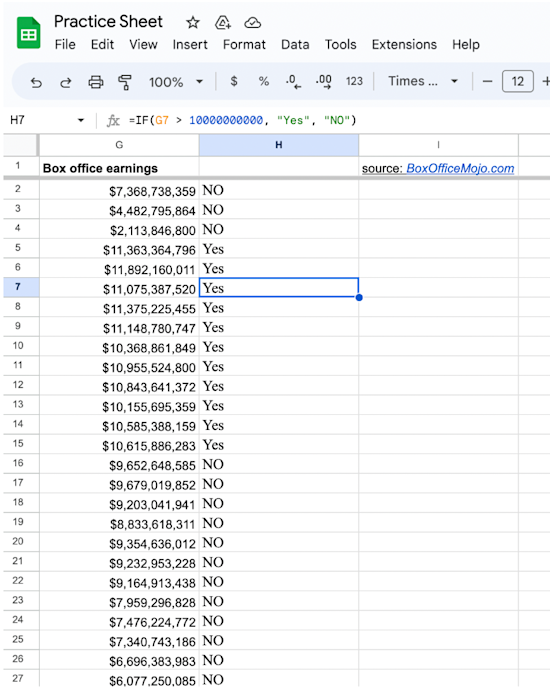
Inside the IF function, enter the logical expression you want to evaluate. This expression should return TRUE or FALSE based on your conditions. For example, if you want to check if a value in cell G2 is greater than 10,000,000,000, your logical expression would be G2>10000000000.
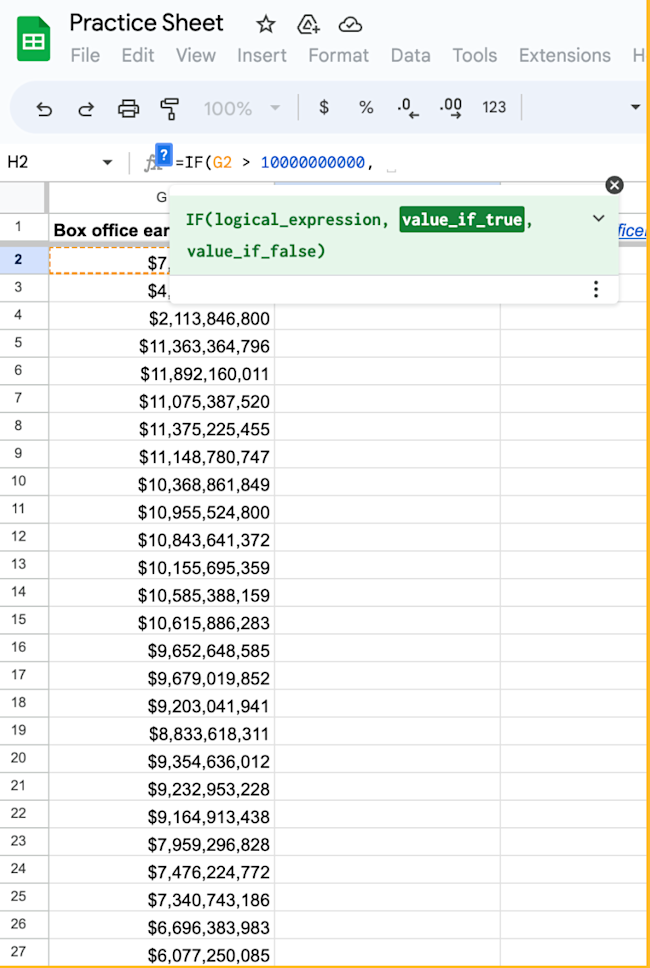
6. Specify the value if true.
After the logical expression, separate the arguments with a comma. Specify the value you want the cell to display if the logical expression evaluates to TRUE. For example, if the logical expression is true, you may want to display Yes in the cell.
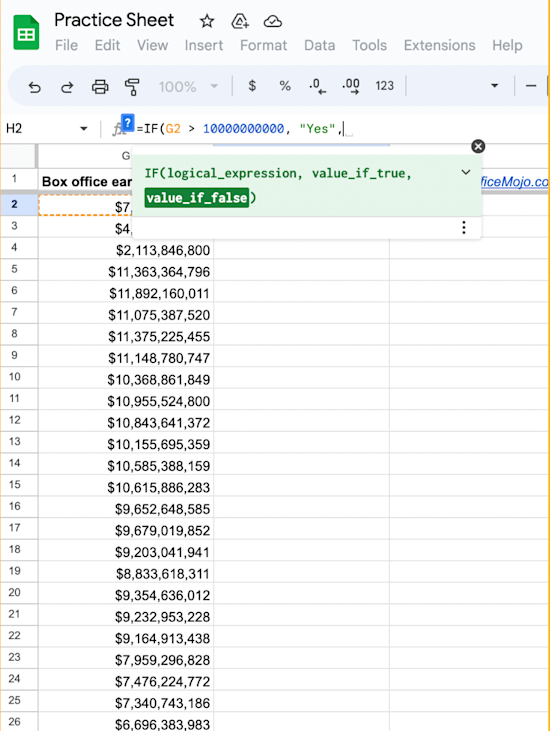
7. Specify the value if false.
After the first comma, specify the value you want the cell to display if the logical expression evaluates to FALSE. For example, if the logical expression is false, you may want to display No in the cell.
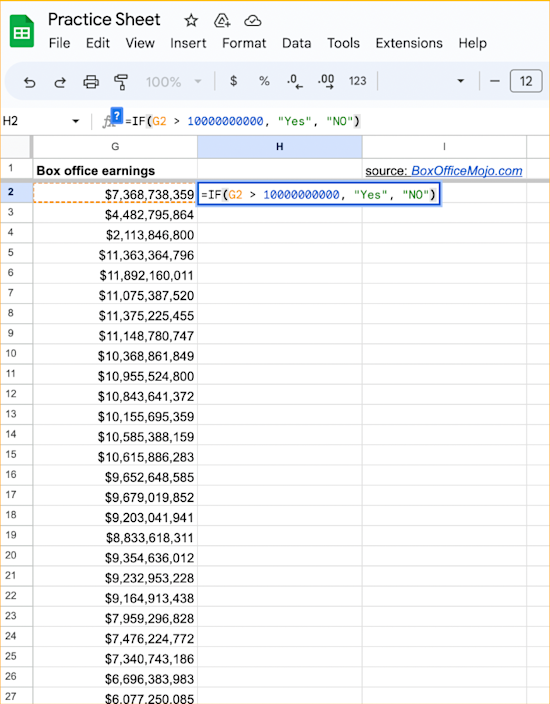
8. Close the formula and press 'Enter.'
Close the formula by adding a closing parenthesis ) at the end. The complete formula should look something like this:
=IF(G2>10000000000, "Yes", "No")
Press Enter to apply the formula to the selected cell. The cell will now display the result based on the evaluation of the logical expression.
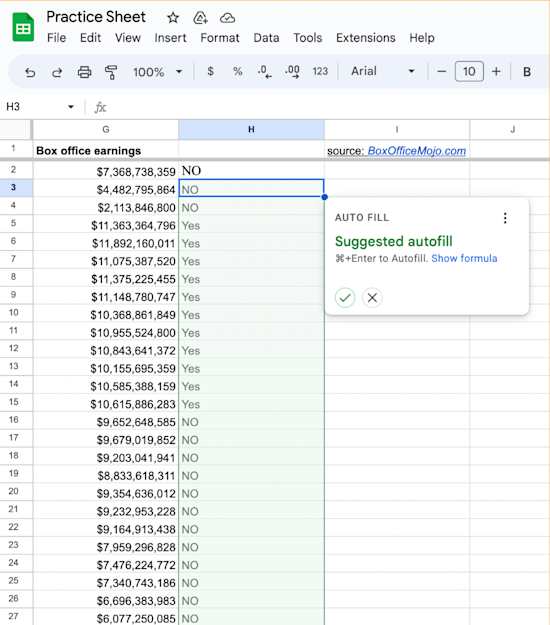
9. Copy the formula as needed.
If you want to apply the same formula to other cells, you can copy and paste the formula into those cells. Google Sheets will automatically adjust the cell references based on the new location.
Related Google Sheets tasks
Once you are comfortable writing basic IF-THEN function statements, you can nest IF-THEN commands to perform more complex operations. An example of what this would look like is: =IF(logical_expression1, value_if_true1, IF(logical_expression2, value_if_true2, IF(logical_expression3, value_if_true3, value_if_false)))
You can practice nesting different IF-THEN statements with your data to get a feel for how the function works.
Troubleshooting common errors
When using the IF-THEN formula syntax, you might get error messages in Google Sheets if you do not use the correct syntax. Double-check the syntax format and look for missing or misplaced commas, parentheses, and quotation marks in your formula. Verify that your logical expression evaluates to either TRUE or FALSE. Once your function is working, it is a good idea to verify that the values returned for true and false outcomes are accurate.
Read more: Using Spreadsheet Formulas: 5 Jobs That Require This Skill
Explore our free data analytics resources
Subscribe to our weekly LinkedIn newsletter, Career Chat, where you can get insights into in-demand data analytics skills and tools. Then, check out some of our other free resources to learn more about developing new skills.
Watch on YouTube: How to Identify Duplicates in Google Sheets
Learn key terminology: Data Analysis Terms & Definitions
Whether you want to develop a new skill or get comfortable with an in-demand technology, you can keep growing with a Coursera Plus subscription. You’ll get access to over 10,000 flexible courses.



Best free Google Sheets IF courses
High-quality free Google Sheets IF courses you can start today.
- Create Charts and Dashboard using Google SheetsCourseraBeginnerLess Than 2 HoursGuided Project
- Create a Budget with Google SheetsCourseraBeginnerLess Than 2 HoursGuided Project
- Create a Project Management Tracker using Google SheetsCourseraBeginnerLess Than 2 HoursGuided Project
Best Google Sheets IF professional programs
Earn a certificate in Google Sheets IF from top universities and companies.
- Getting started with Google WorkspaceGoogle CloudBeginner3 - 6 MonthsSpecialization
- Google Workspace with GeminiGoogle CloudBeginner1 - 3 MonthsSpecialization
- Google Business IntelligenceGoogleAdvanced3 - 6 MonthsProfessional Certificate
Coursera Staff
Editorial Team
Coursera’s editorial team is comprised of highly experienced professional editors, writers, and fact...
This content has been made available for informational purposes only. Learners are advised to conduct additional research to ensure that courses and other credentials pursued meet their personal, professional, and financial goals.