How to Set Up Google Analytics
Learn how to set up Google Analytics on your website or mobile app.
![[Featured image] A person wearing a blue buttoned top sits at their dining table and browses online for how to set up Google Analytics for their website.](https://d3njjcbhbojbot.cloudfront.net/api/utilities/v1/imageproxy/https://images.ctfassets.net/wp1lcwdav1p1/5ulA3P8u8ECMmJ5qVoN5kz/655a81f8733fc0d5873359b43f8e9519/1059706672-converted-from-jpeg-converted-from-webp.webp?w=1500&h=680&q=60&fit=fill&f=faces&fm=jpg&fl=progressive&auto=format%2Ccompress&dpr=1&w=1000)
Key takeaways
To set up Google Analytics, create an account, create a property, including the time zone and currency, and add a data stream to indicate whether you will collect data from a mobile app or website.
To set up Google Analytics for a website, enter the site’s URL and name the stream, enable enhanced measurement for the collection of additional data, and install a Google Tag on the website.
To set up Google Analytics for a mobile app, enter the relevant identification information (the iOS bundle and App Store ID or Android package name), download the config files and Firebase SDK, and run the app to confirm the setup before clicking Finish.
Setting up a Google Analytics account requires visiting the home page, signing into your Google account, and clicking Create Account to begin. Learn more about how to set up Google Analytics for a website or mobile app.
If you’re ready to begin building skills in marketing analysis using Google Analytics, enroll in the Google Analytics: Reports & Traffic Analysis Specialization. This beginner-level program offers the opportunity to learn how to analyze user behavior and SEO performance, connect Google Ads, and build skills such as data-driven decision-making and digital analysis.
What is Google Analytics for beginners?
Google Analytics is a valuable tool that provides insight into who is using your website or app and how they are interacting with it. It can tell you where your users are coming from, how long they are on your website, what pages they visit, and more. You can use Google Analytics to help you decide which growth strategies are working, what features your users appreciate, and which marketing strategies are making a difference.
Is it free to set up Google Analytics?
Yes, you can set up Google Analytics for free. Google provides this helpful marketing tool and resources to help you get the most from it, at no charge.

How to set up Google Analytics
Here is a quick summary of the steps you will need to complete to set up Google Analytics on your website or mobile app:
Create a property.
Add a data stream.
Let’s take a closer look at these steps and what you’ll need to accomplish them.
Step 1: Create an account.
Go to the Google Analytics home page and sign in to your Google account. If you don't already have a Google account, click on Create Account and follow the instructions.
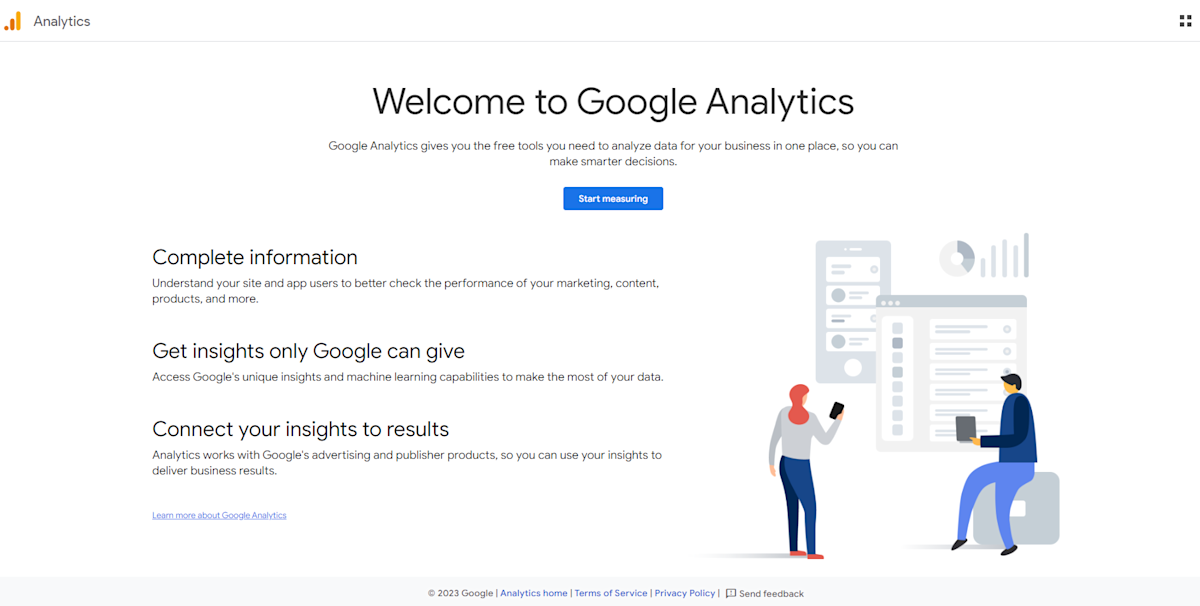
Once you are signed in, click on the Start measuring button to create a Google Analytics account.
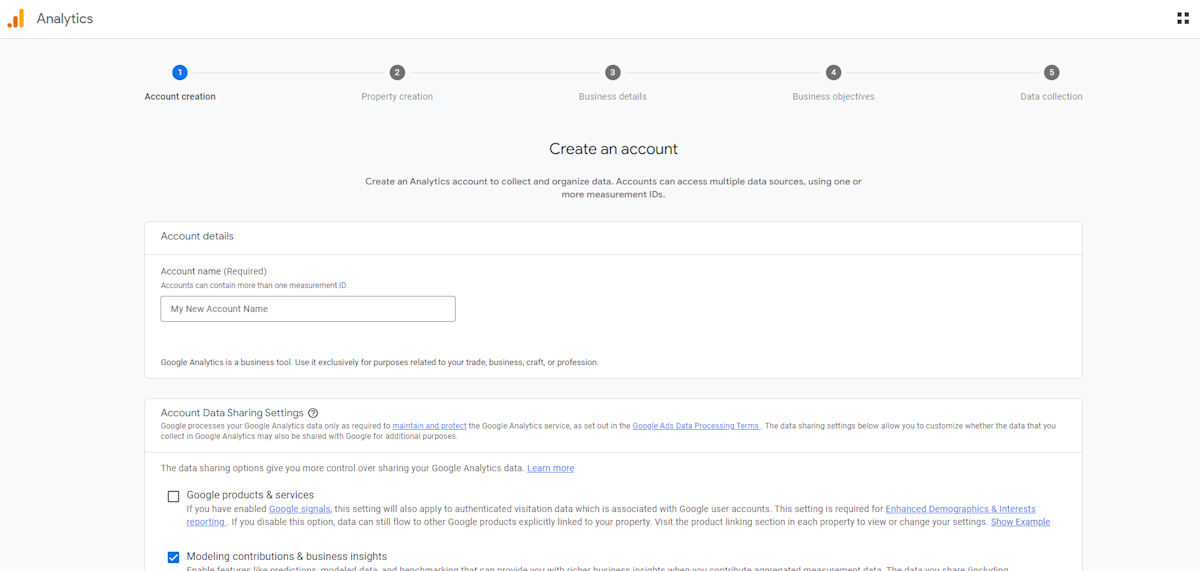
You’ll need to provide an account name and decide what data you will share with Google. When you have completed this step, click Next.
Step 2: Create a property.
After clicking Next, you will see a prompt to create your first property. Enter the name of the property, the time zone you will collect data in, and the currency recorded on the website.

Once you click Next, choose an industry category and a business size.

Click Next again, and specify how you use Google Analytics on the following screen. Depending on your business or campaign objectives, you may want to generate leads, drive online sales, raise brand awareness, examine user behavior, or get baseline reports. You can choose one, more than one, or all of these options. You can also choose to get baseline reports.

Step 3: Click ‘Create.’
Once you are ready, click Create and accept the Analytics Terms of Service and the Data Processing Amendment.
Step 4: Add a data stream.
To start collecting data, you will need to set up a data stream. Choose whether you will be tracking an iOS app, an Android app, or a website. Below, our tutorial is split into two tracks. First, we’ll detail the steps for setting up Google Analytics on a website, and then we’ll address setting it up for a mobile app.

How to set up Google Analytics for a website:
If you want to learn how to set up Google Analytics on a website, follow these steps:
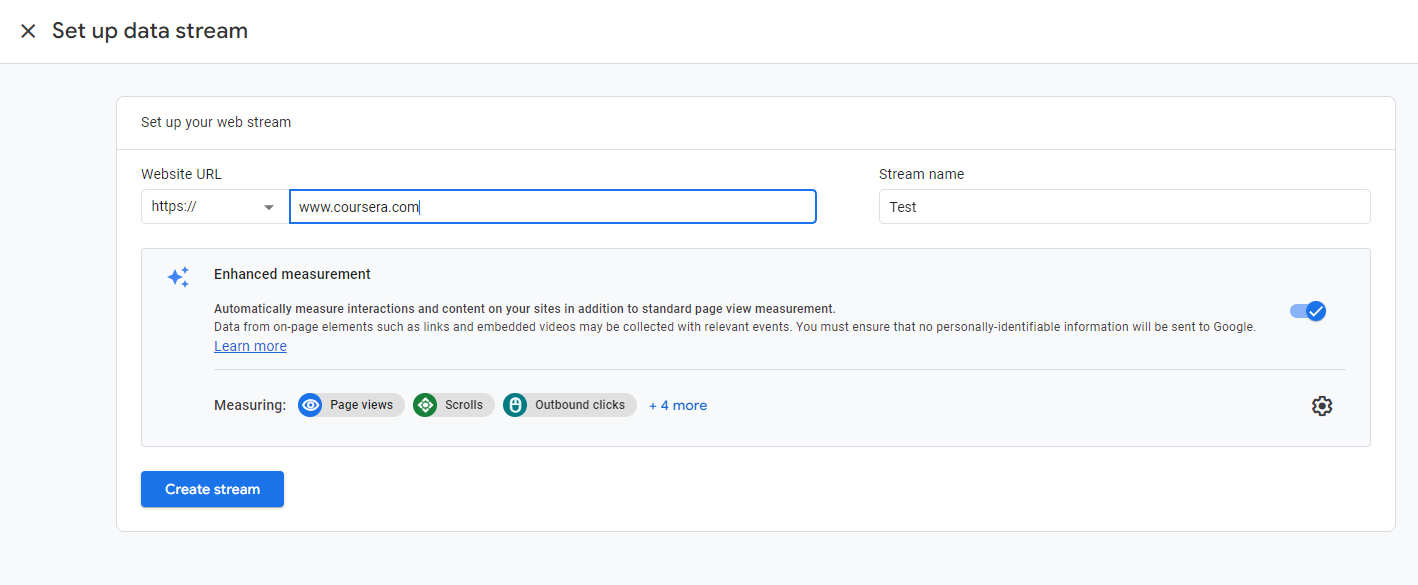
Step 5: Enter the URL and a name for the stream.
This information will help you separate one stream from another.

Step 6: Enable enhanced measurement.
The last step before you create a stream is to enable or disable enhanced measurement, which collects additional data in Google Analytics. You can also come back later and choose to adjust which measurements you collect in the future, but you won’t be able to gain new data from the past. Click Create stream.
Step 7: Install a Google Tag.
Before you can see your Google Analytics data, you must install your Google Tag on your website. While many CMS and website builders offer Google Analytics integrations, you can also manually install the Google Tag in your website’s HTML. This process will vary depending on how you created your website.
Read more: How to Use Google Analytics Advanced Segments for Modern Insights
How to set up Google Analytics for an Android or iOS app:
If you want to learn how to set up Google Analytics on an Android or iOS app, follow these steps:
Step 5: Enter the identification information.
For an iOS app, the identification information will include the iOS bundle ID and the App Store ID. For an Android app, you’ll need the package name.
Step 6: Download the config file and Google Analytics for Firebase SDK.
Follow the onscreen instructions to download the config file and to add Google Analytics for Firebase SDK.
Step 7: Run the app.
This will confirm that you set up the SDK properly and that Google can communicate with your app properly.
Step 8: Click ‘Finish.’
Simply click Finish, and you’ve successfully learned how to set up Google Analytics.
Explore our free data analytics resources
Subscribe to Career Chat, our weekly LinkedIn newsletter, to remain updated on new tools and technologies and to gain professional insights you can use. Then, check out our other resources to continue learning about analytics.
Learn from an expert: 8 Questions with an Expert: Google Financial Data Analyst
Watch on YouTube: 7 Essential Data Analytics Skills for Beginners
Find your path: Career Aptitude Quiz
You can also learn more about data analytics, develop a new skill, get comfortable with an in-demand technology, or advance your abilities to keep growing with a Coursera Plus subscription. You’ll get access to over 10,000 flexible courses.



Keep reading
- October 6, 2026
- February 12, 2026
- June 12, 2026
- July 17, 2026
- February 21, 2026
- June 30, 2026
Coursera Staff
Editorial Team
Coursera’s editorial team is comprised of highly experienced professional editors, writers, and fact...
This content has been made available for informational purposes only. Learners are advised to conduct additional research to ensure that courses and other credentials pursued meet their personal, professional, and financial goals.